 Community Store
Paramood
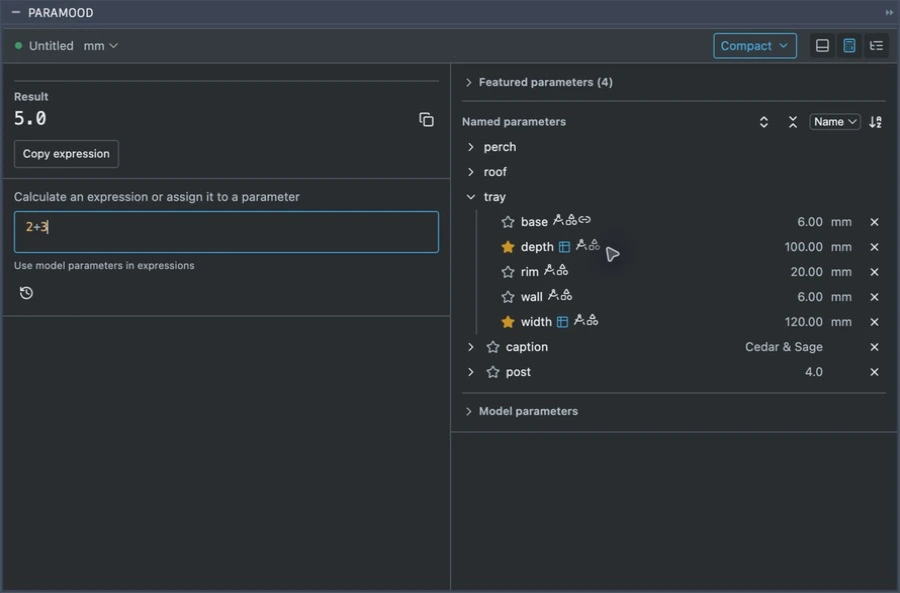
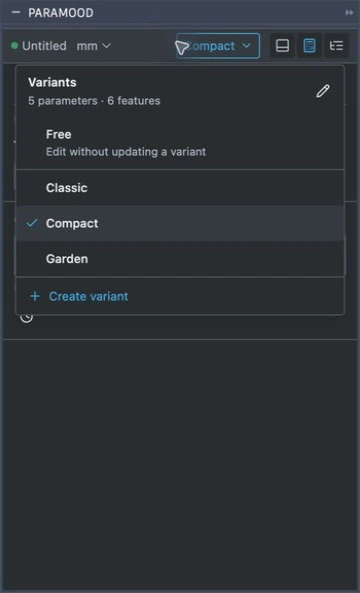
Edit dimensions with the model in view. Enter several parameters and formulas at once, preview their values and apply them together. Organize parameters into a tree of groups and switch between saved design variants.

Find a community add-in, install it and put it to work in Fusion. Get updates as authors publish them. Export your Store profile to take your tools to another computer or account.
For an enclosure that comes in two sizes, save both variants in Paramood and switch between them in one file. Lay out a vent with Perfora by choosing a face and setting the hole spacing.
For a test print, select the finished parts and send them to OrcaSlicer with ExporTo. You’ll find all three add-ins in the default catalog.
4FusionLab / 8 add-ins
Edit dimensions with the model in view. Enter several parameters and formulas at once, preview their values and apply them together. Organize parameters into a tree of groups and switch between saved design variants.
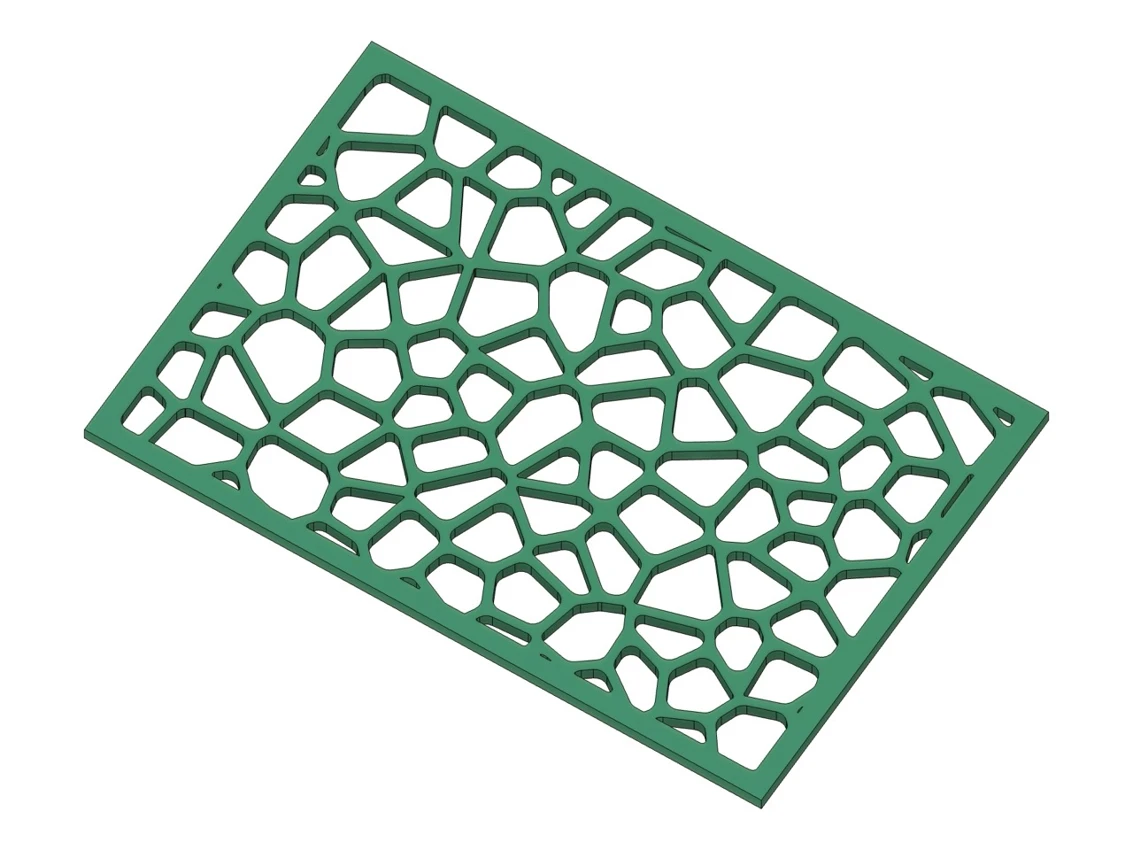
Turn a face into a grille or perforated panel. Choose from 12 hole shapes and explore radial layouts, honeycombs and Voronoi cells. Preview changes to spacing, web thickness and edge clearance on the part.
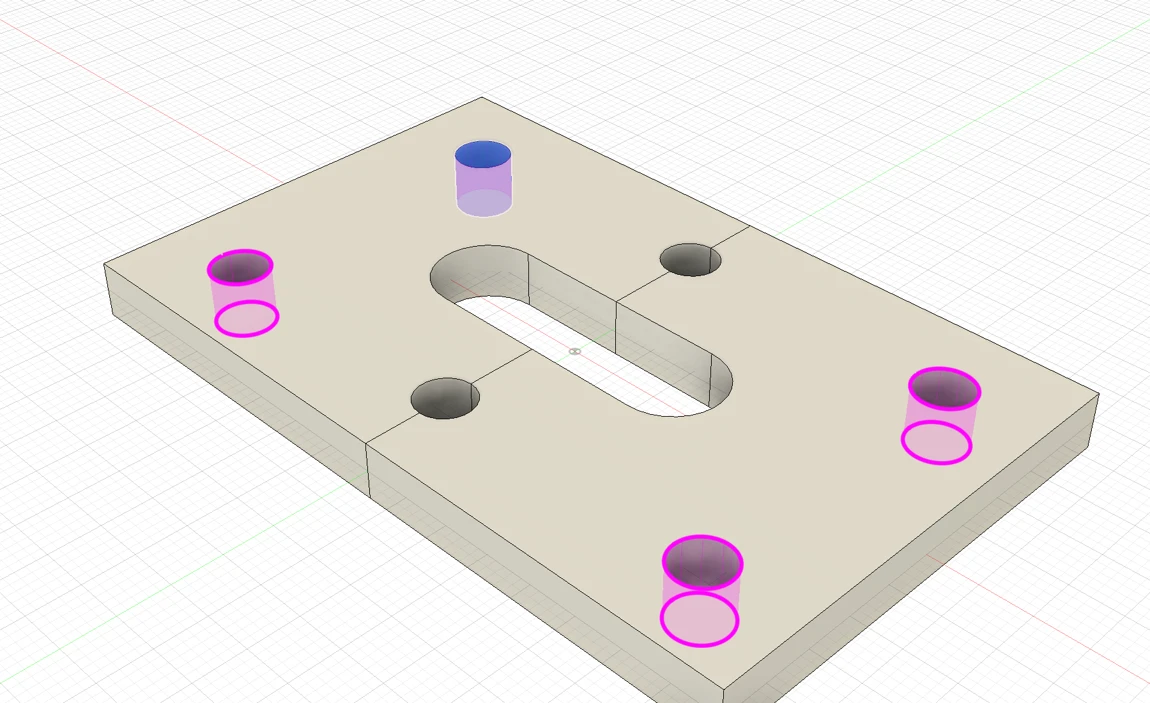
Pick one face or edge as an example. Selectra highlights matching geometry across the model. Adjust the range and use the selection in your next Fusion command, or start from an edge to trace a closed contour.
Split a complex solid into parts. Define the volume with a sketch profile or planar face, then set a depth or extend the cut to another object. Extract the result as a separate body or component.
For machining setup, keep the dimensions you need in view on the 3D model. Position distance, diameter and angle labels where you can read them. Show one measurement or the whole set, and see values update as the geometry changes.
Right-click selected bodies to send a STEP file straight to OrcaSlicer. Export parts together to keep their relative positions. The same menu can open a 3MF in your slicer or an STL in Blender.
Find a filament color by manufacturer and product line. Add the appearance to your design and apply it to selected geometry.
RuEn fixes a longstanding Fusion shortcut problem for Russian keyboard users. Press Д and Fusion runs the command assigned to L. Keep your existing letter shortcuts when you switch layouts.
Inside the Fusion palette
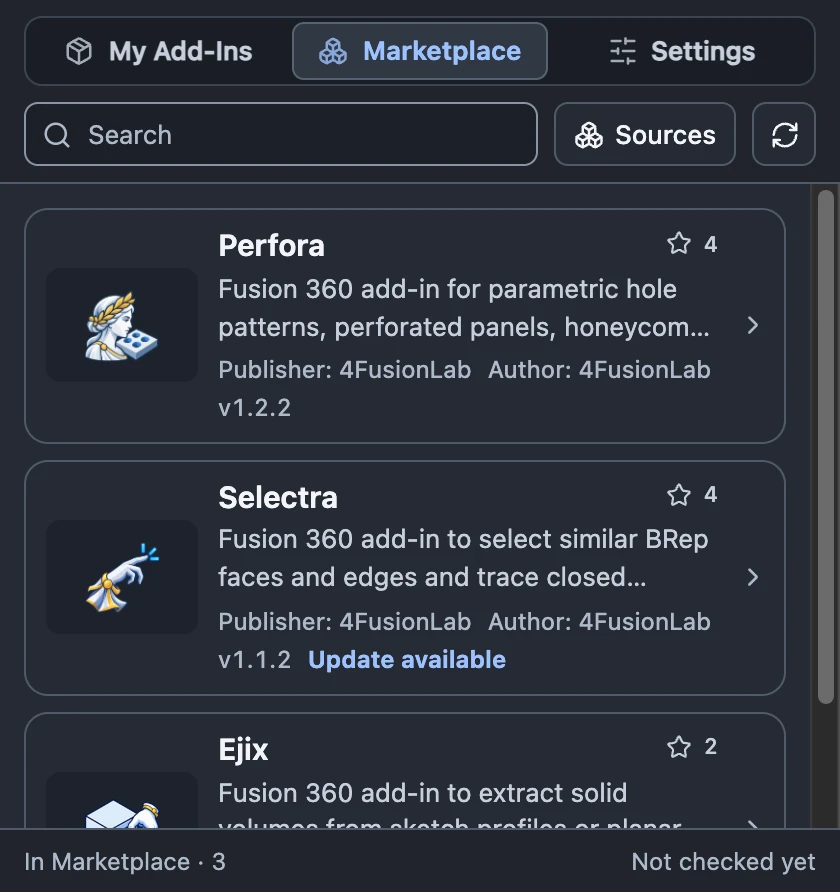
Search by name. Open a result to read the author’s description.
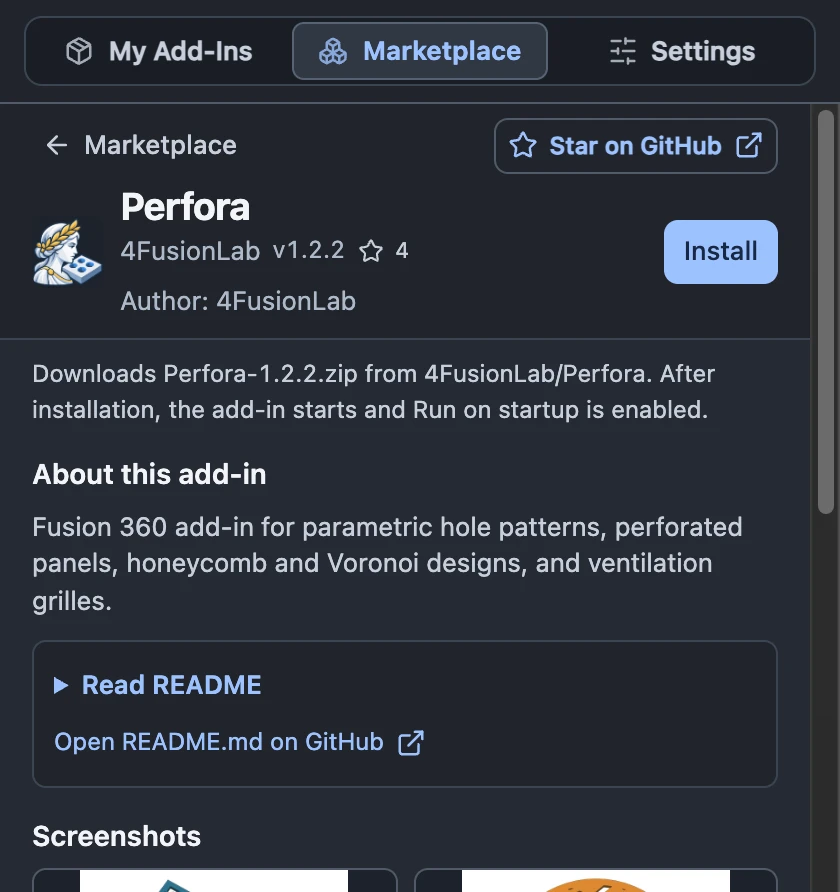
Choose Install on the add-in page. If a release has several packages, choose the one for your system.
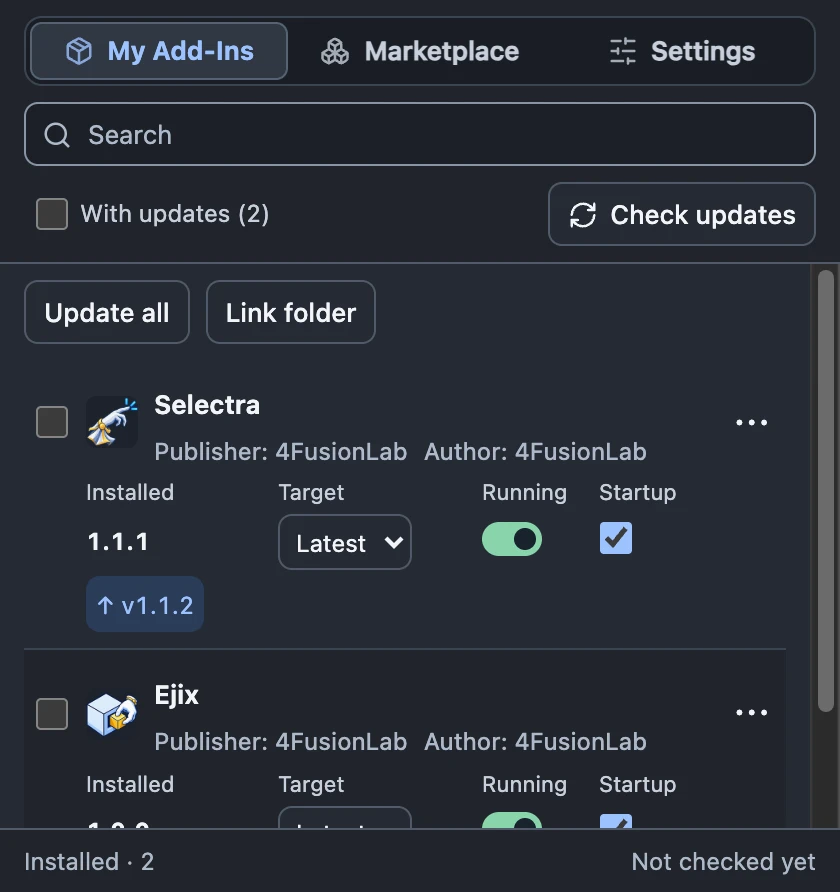
Select Update all to see the proposed versions together. Review the list and confirm once.
Community catalog
Open Sources in your palette to add another GitHub author or organization alongside these accounts.
Larger names closer to the center indicate more GitHub stars across an author’s catalog add-ins.
Paste a GitHub profile, organization or repository URL into Sources. Any of these connects the entire account. Browse its add-ins, screenshots and READMEs in the palette.
Choose a stable release. The palette marks packages for your operating system and checks the digest, version and add-in ID where available. You can open prereleases on GitHub.
By default, the Store checks at Fusion startup and every 30 minutes, even with the palette closed. Change the interval in Settings. When you apply updates, you can see the result for each add-in.
Updating a Store-managed add-in backs up its previous folder. Unlinking a repository leaves its files in place. To recover an archived add-in, copy its folder to a permanent location and link it again in Fusion.
You can browse, install and update public add-ins while signed out. Signing in uses your account’s GitHub API quota.
Open Settings to check for Store updates, export diagnostic logs or replay the first-run guide. To report a problem with an add-in or source, open its entry in the palette.
CommunityStore folder
containing
CommunityStore.manifest and
CommunityStore.py.
Attach your add-in’s ZIP to a GitHub release so people can install it from the palette. The guide shows how to structure the ZIP, prepare the manifest and write the README users see in the catalog.
Publisher guideTo reach everyone using the default catalog, submit your GitHub profile or organization and a link to one published release.
Submit a catalog source